
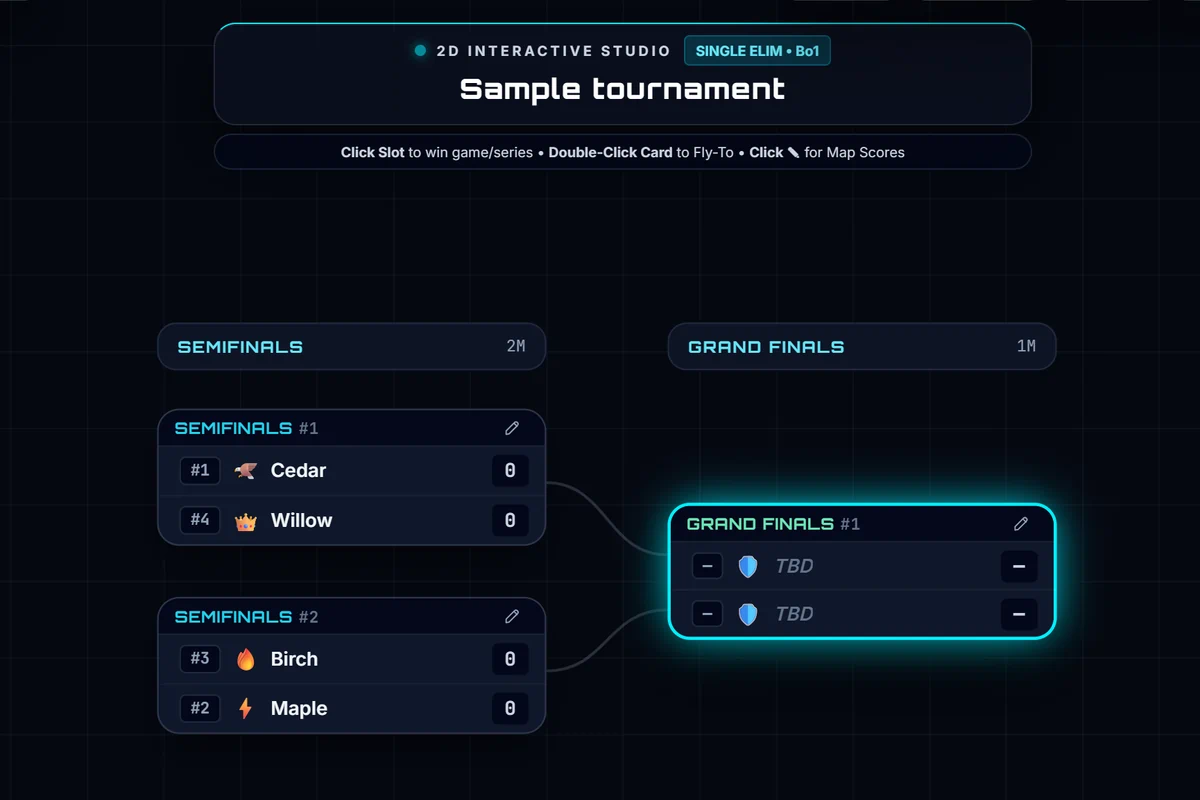
The free 2D bracket studio opens in the Sandbox. No account is needed; the interactive controls require JavaScript and a modern browser.
How to create your bracket
- Open Studio Controls and choose single or double elimination and Best of 1, 3, 5, or 7 before recording results.
- Under Seeded Participants, enter one participant per line and select Apply Teams. Review all names and seeds. You can also use emoji | team name for custom icons.
- Keep roster order for your seeds, or select Shuffle to randomize the order.
- Play each contest elsewhere, then record game wins using the team slots or enter scores with the pencil on the match.
Formats, seeds, and byes
Single elimination removes an entrant after a lost series and can include an optional third-place match. Double elimination adds a lower bracket and one grand final, without an automatic grand-final reset. The lower-bracket finalist can win the title in that final even if it is the upper finalist’s first loss.
The studio supports 3–32 entrants. Roster order determines seeds; top seeds receive automatic opening byes when the field does not fill a power-of-two bracket. Applying a roster, shuffling seeds, or changing elimination format starts fresh progression.
Record results and correct matches
In +1 Game Win mode, click a team slot to record a game win. The series winner advances when enough wins are recorded. Instant Advance records a series winner in one click. The match inspector lets you edit series wins and individual game scores.
Tied game scores do not add a win. Resolve tied contests under your event’s rules before deciding who advances. Correcting an earlier match can clear affected later results, which may need to be entered again.
Choose the series format before scoring. If you change Best of after recording results, select Reset and enter those results again. Reset restarts progression while keeping your roster and settings. Simulate starts a fresh tournament and randomly decides matches; use it for rehearsal.
Export, share, and present
- PNG: download a high-resolution image. Dimensions depend on the bracket and spacing; external logo images can be replaced by a fallback icon. Review the image before distributing it.
- JSON: download the bracket state, then paste it into the JSON panel and select Load Edited JSON to restore it. The dedicated roster uses text entry rather than spreadsheet import.
- Share URL: copy a snapshot of the current bracket. Later edits do not synchronize between people opening the link. Long links and clipboard actions can be limited by your browser or sharing platform; use JSON as an alternative.
- Presentation: drag to pan, use zoom buttons, or focus the bracket and use arrow keys and plus/minus. Round views help with large brackets. OBS Overlay provides a transparent presentation view; Escape exits.
A 32-entrant overview is too small to read comfortably at once. Zoom into matches or select a round, especially on a phone. PNG downloads also depend on browser memory; try smaller spacing if an export fails.
Your local bracket is saved in this browser, and clearing site data can remove it. Keep a JSON copy and review names and scores before sharing. For detailed controls, read the Tournament user guide.